
Why Turning Off an iPad Even Matters
Most people just let their iPad sleep forever. But turning it off comes in handy when:
- The screen freezes
- A glitch keeps looping
- Apps won’t close
- The battery drains too fast
- You just want to reset things quietly
A full shutdown resets background processes, kinda like letting your iPad “take a breath.”
How to Turn Off an iPad (Any Model)
Good news: every iPad shuts down using one of two methods — buttons or settings. Bad news: Apple keeps changing button layouts… so follow the one that matches your device.
Method 1: Turn Off an iPad Using Buttons (Most iPads)
This works on:
- iPad Air (any gen)
- iPad Pro (Face ID and Touch ID models)
- iPad Mini
- Standard iPad
- Basically everything made after 2018
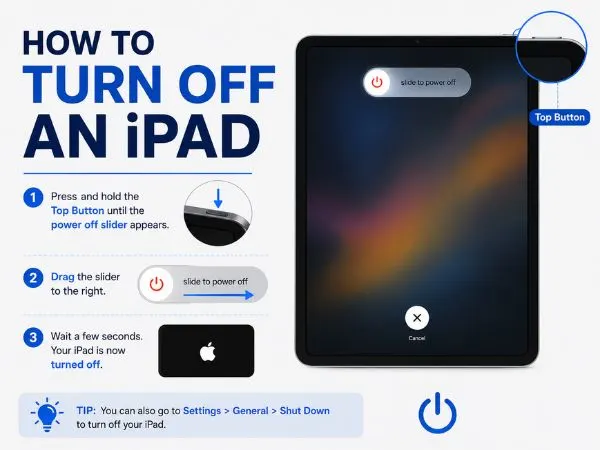
Step 1 — Press & Hold the Power Button + Volume Button
Hold Top Button + Volume Up or Down at the same time. Keep holding until you see the “slide to power off” bar.
Step 2 — Slide to Power Off
Swipe the bar from left to right. Give it a few seconds. The screen will go fully black when it’s done.
Step 3 — Confirm Shut Down
Once it’s off, the screen won’t light up if you tap it. If it does, you might’ve put it to sleep instead of turning it off.
Method 2: How to Switch Off an iPad From Settings (No Buttons Needed)
Great if your buttons are broken or the iPad case is a pain.
Step 1 — Open Settings
The grey gear icon.
Step 2 — Go to “General”
Scroll the list on the left if you don’t see it right away.
Step 3 — Scroll Down & Tap “Shut Down”
It’s literally the last option at the bottom.
Step 4 — Slide to Power Off
Same shutdown slider as before. Swipe and done.
also read : – How to Set Up a Secure Home Wi;.Fi Network
How to Turn Off an Old iPad (Models With a Home Button)
If your iPad has a physical round Home button, use this:
Step 1 — Press & Hold the Top Button
Just one button. No need for volume buttons.
Step 2 — Slide to Power Off
Swipe the bar and wait for the iPad to turn off.
Older iPads are stubborn sometimes but simple.
What If Your iPad Won’t Turn Off? (Quick Fixes)
Sometimes the iPad ignores shutdown attempts. Try these fixes.
Fix 1 — Force Restart
This doesn’t delete anything. Just resets the system.
For Face ID iPads:
- Tap Volume Up
- Tap Volume Down
- Hold Top Button until Apple logo appears
For Home Button iPads:
- Hold Home Button + Top Button until the Apple logo pops up.
Fix 2 — Disconnect Accessories
Bluetooth keyboards, screen protectors pressing buttons, and bulky cases can block shutdown gestures. Remove them and retry.
Fix 3 — Charge the iPad
A dead or dying battery sometimes freezes power functions. Plug it in for 10 minutes and try again.
Fix 4 — Shut Down from Settings
When physical buttons fail, this always works.
How to Turn On the iPad Again
Turning it back on is easy:
Press & Hold the Top Button until the Apple logo shows up. Release. Done.
also read : – How to Mute Someone on IG (Story, Posts, Notes, Calls — Without Them Knowing)
FAQ: Turning Off an iPad
How do you turn off an iPad without touching the screen?
Force restart or let the battery die. For a normal power-off without touch, enable Accessibility (AssistiveTouch).
How do I switch off an iPad that’s frozen?
Force restart — it’s the lifesaver method.
How do I turn off an iPad without the power button?
Go to Settings → General → Shut Down.
Is it bad to keep my iPad on all the time?
Not really, but turning it off once in a while helps fix tiny glitches.
Can you schedule automatic shutdown?
No. iPads don’t support that natively.
Final Thoughts
Turning off an iPad should be simple, but Apple loves making us tap, hold, swipe, and guess which button is which. Now you know every method — buttons, settings, old models, new models, troubleshooting, all of it.

